Docs
Editor
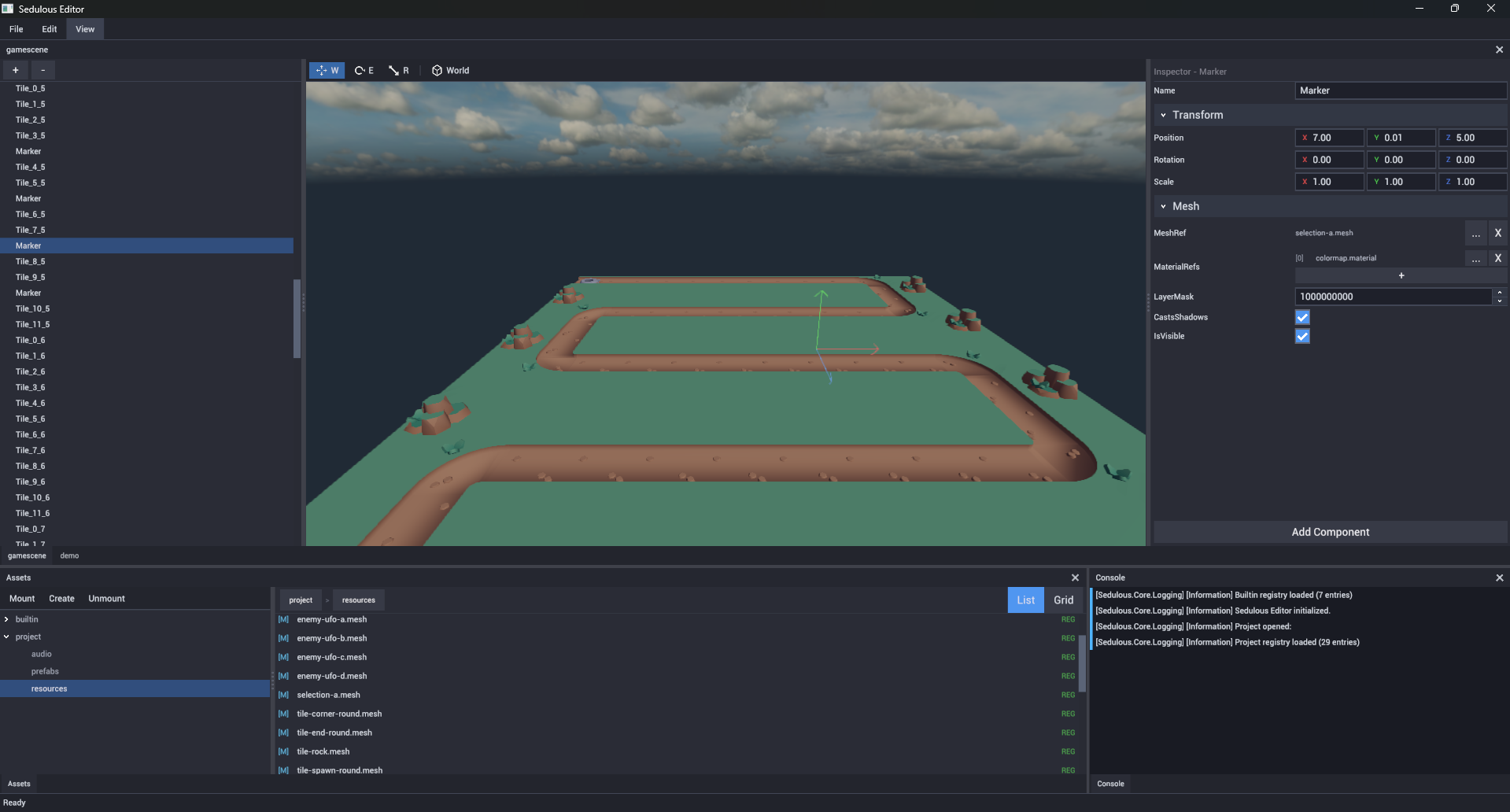
The Sedulous Editor is a standalone application for authoring scenes, importing assets, and configuring game content. It runs an embedded engine runtime for live 3D preview. The editor is entirely optional – everything it does can also be done in code.
Project Structure
Open a directory as a project. The editor creates a .sedproj file to store project settings, open pages, and dock layout.
MyProject/
  .sedproj                    # Project settings (OpenDDL)
  editor_layout.oddl          # Dock panel layout
  project.registry            # Resource GUID -> URI map for the project mount
  scenes/
    level1.scene
  models/
    hero.mesh
    hero.skeleton
  textures/
    hero_diffuse.texture
    hero_diffuse.texture.bin  # Pixel data sidecar
  materials/
    hero.material
Editor Layout
The editor uses a dockable panel system:
- Center – Scene editor pages (one tab per open scene/prefab/asset)
- Bottom – Asset Browser + Console (tabbed)
- Floating – Panels can be undocked and floated as separate windows
Layout is saved automatically on shutdown and restored on next launch.
Scene Editor
Double-click a .scene file in the asset browser to open it as a tab. The scene editor has three panes:
- Hierarchy (left) – entity tree with drag-to-reparent, right-click context menu, rename
- Viewport (center) – 3D preview with editor camera (WASD + RMB look, Alt+LMB orbit, scroll zoom)
- Inspector (right) – properties of the selected entity, or scene settings when nothing is selected
Transform Gizmos
Select an entity and use the toolbar or keyboard shortcuts:
| Key | Mode | Description |
|---|---|---|
| W | Translate | Drag arrows to move along axes |
| E | Rotate | Drag rings to rotate around axes |
| R | Scale | Drag handles to scale along axes |
Toggle World/Local space with the toolbar button.
Scene Settings
Click on empty space (deselect all entities) to see scene-level settings in the inspector:
- Sky Texture – ResourceRef to a
.texturefile - Sky Intensity – brightness multiplier
- Ambient Color – global ambient light
- Exposure – tone mapping exposure
Asset Browser
The bottom panel shows all mounted resource collections, organized as a tree on the left and a content view on the right.
The tree’s root nodes are mounts – the editor always shows builtin (engine-supplied primitives, materials, skies) and project (the open project’s assets). Additional mounts can be added via the toolbar:
- Mount – open a
.registryfile and mount its containing directory under a new scheme. - Create – pick a directory and create a fresh empty mount + registry inside it.
- Unmount – remove a user-mounted scheme (the locked
builtinandprojectentries can’t be unmounted).
Each mount has its own index file (e.g. project.registry) that maps GUIDs to URIs within that scheme. The index is persisted automatically whenever you create, rename, delete, or import an asset.
Navigation
- Click folders to navigate
- Breadcrumb bar shows the current path (clickable segments) prefixed by the mount scheme
- Toggle between list and grid view
Context Menu (Right-Click)
On empty space / folder:
- Create -> Scene, Prefab, Material (extensible)
- Create Folder
- Import… (file dialog)
On asset:
- Delete
- Copy Path (scheme-prefixed URI, e.g.
project://models/hero.mesh) - Copy GUID
- Show in Explorer
Importing Assets
Right-click -> Import, or use File -> Import. The import dialog shows:
- Source file path
- List of resources to produce (checkboxes)
- Preset selection (for textures: 3D, Sprite, UI, Sky)
- Import / Cancel buttons
Supported source formats:
- Models:
.gltf,.glb,.fbx-> produces.mesh,.texture,.material,.skeleton,.animation - Images:
.png,.jpg,.tga,.bmp,.hdr-> produces.texture
Double-Click to Open
Double-clicking any resource opens it in a page tab. Scene and prefab files open the full scene editor. Other resources open type-specific viewers (texture preview, material properties, etc.).
Prefabs
Prefabs are reusable entity subgraphs. A .prefab file is a mini-scene that can be instantiated multiple times across different scenes.
Creating a Prefab
In the asset browser: right-click -> Create -> Prefab. This creates an empty .prefab file that opens in the scene editor for authoring.
Using a Prefab
Add a PrefabReferenceComponent to an entity. Set its PrefabRef to the .prefab file. The prefab’s entities are instantiated as children at runtime.
Inspector
The inspector shows properties of the selected entity:
- Name – editable entity name
- Transform – Position, Rotation (euler), Scale
- Components – one section per component with editable properties
- Add Component – button to add new components from a list of available types
Properties are auto-generated from [Property] attributes via comptime codegen. Supported field types: float, int32, bool, String, Vector3, Quaternion, ResourceRef, enums.
Undo/Redo
Each scene page has its own undo stack. Transform gizmo drags, property edits, and entity creation/deletion are all undoable via Edit -> Undo/Redo.
Session Persistence
The editor saves and restores:
- Dock layout – panel positions and split ratios
- Open pages – which files were open as tabs
- Active page – which tab was selected
- Project settings – key-value pairs in
.sedproj